Drift Boss might be the most video-friendly game on the web. There’s one button, so viewers understand the rules in a second. Every corner could be the last one, so tension builds on its own. And every run ends with either a new best score or a fall off the edge, and both make good endings.
That’s why Drift Boss clips keep turning up on TikTok and YouTube Shorts. This guide walks through the whole process: recording a run, picking a format that hooks, writing a script that fits 30 seconds, turning it into a voiceover with AI, and editing it all together.
Record in portrait on your phone (or with Game Bar or Cmd+Shift+5 on desktop), aim for a 15–30 second clip, and hook viewers in the first two seconds. Write about 70–80 words of script, turn it into narration with AI text-to-speech, keep game sound below the voice and add captions for people watching on mute.
Why Drift Boss Works So Well on Short-Form Video
- It’s instantly readable. Hold to drift right, release to drift left. Nobody needs a tutorial to follow what’s happening.
- The tension is built in. The road never ends, so every corner is a chance to fall.
- The payoff is obvious. A new personal best or a dramatic fall both make a natural last second.
- Runs are short. It’s easy to cut a tight clip, and easy to loop it so people watch twice.
Step 1: Record Your Run
Every platform already has a free screen recorder built in, so you don’t need to install anything to start.
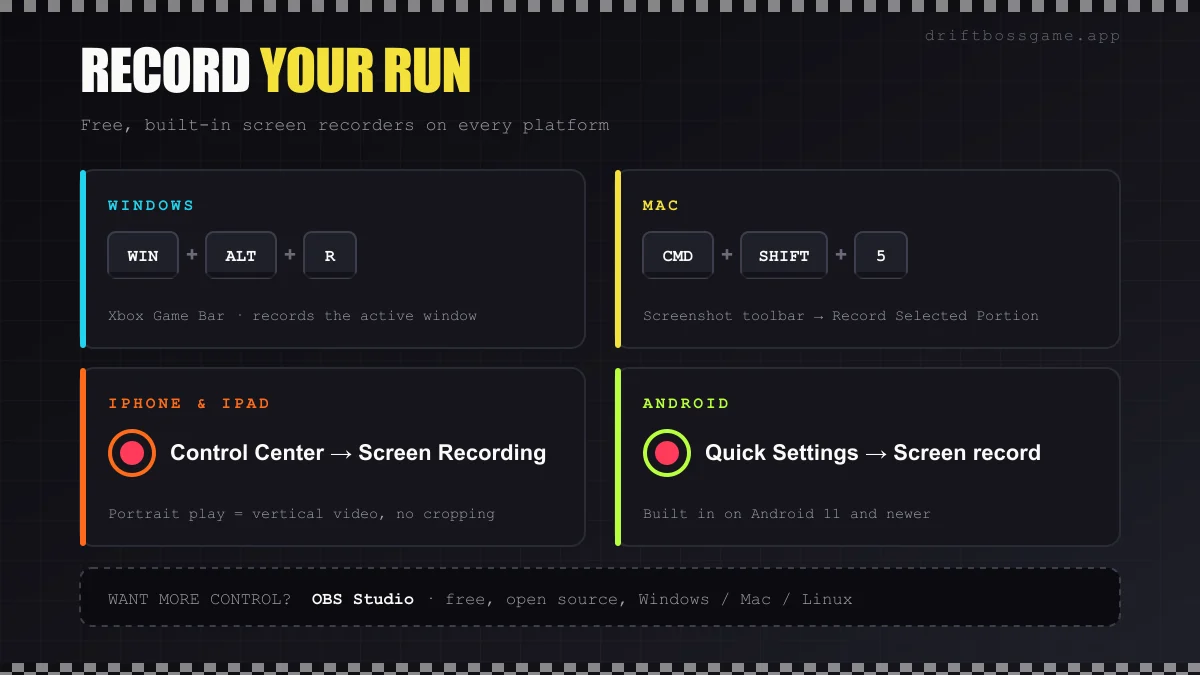
- iPhone and iPad: open Control Center and tap Screen Recording. If you don’t see it, add it from the Control Center settings.
- Android: on Android 11 and newer, swipe down to Quick Settings and tap Screen record.
- Windows: the Xbox Game Bar records the active window. Press Win + Alt + R to start and stop, or Win + G to open the overlay.
- Mac: press Cmd + Shift + 5, choose Record Selected Portion and drag the box around the game.
- More control: OBS Studio is free, open source and runs on Windows, Mac and Linux.
Phone recording has one big advantage: if you play in portrait, the video is already vertical, which is exactly what TikTok and Shorts want. Desktop recordings come out landscape, so you’ll need to crop or use a split layout later.
Two habits save a lot of time. Turn on Do Not Disturb so notifications don’t land in the middle of your best run. And record whole sessions rather than single attempts, because the best moments are rarely the ones you planned.
Step 2: Pick a Format That Hooks
Most good Drift Boss clips fit one of a few formats:
- The near miss. The car hangs over the edge and somehow recovers. Short and very rewatchable.
- The personal-best attempt. Show the score climbing toward your record and let the tension do the work. If you’re chasing big numbers, see what the community counts as the Drift Boss world record.
- “Can you beat this?” End on your score and challenge viewers. The comments take care of themselves.
- The 10-second tutorial. One tip, shown clearly. For example: release one beat before the corner ends, not at the apex.
- The fail compilation. Your five worst falls, back to back.
Whatever the format, the first two seconds decide whether anyone keeps watching. Start in the middle of the action and put the stakes on screen right away, whether that’s the score, the corner count or a one-line caption.
Step 3: Write a Tight Script
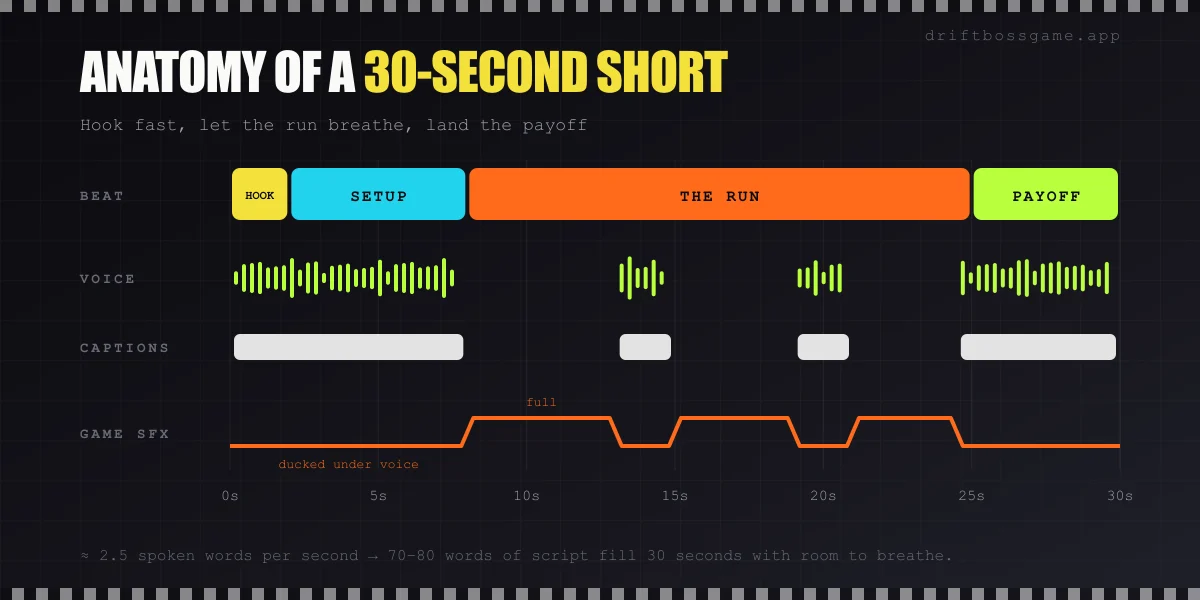
People speak at roughly 150 words per minute, about 2.5 words per second. A 30-second short holds around 70–80 words, and you’ll want fewer than that so the run gets moments to play without narration.
A simple structure that works:
- Hook (0–2s): the stakes, in one line.
- Setup (2–8s): what’s happening and why it’s hard.
- The run (8–25s): mostly gameplay, with one or two short call-outs.
- Payoff (25–30s): the result, plus a question or challenge for the comments.
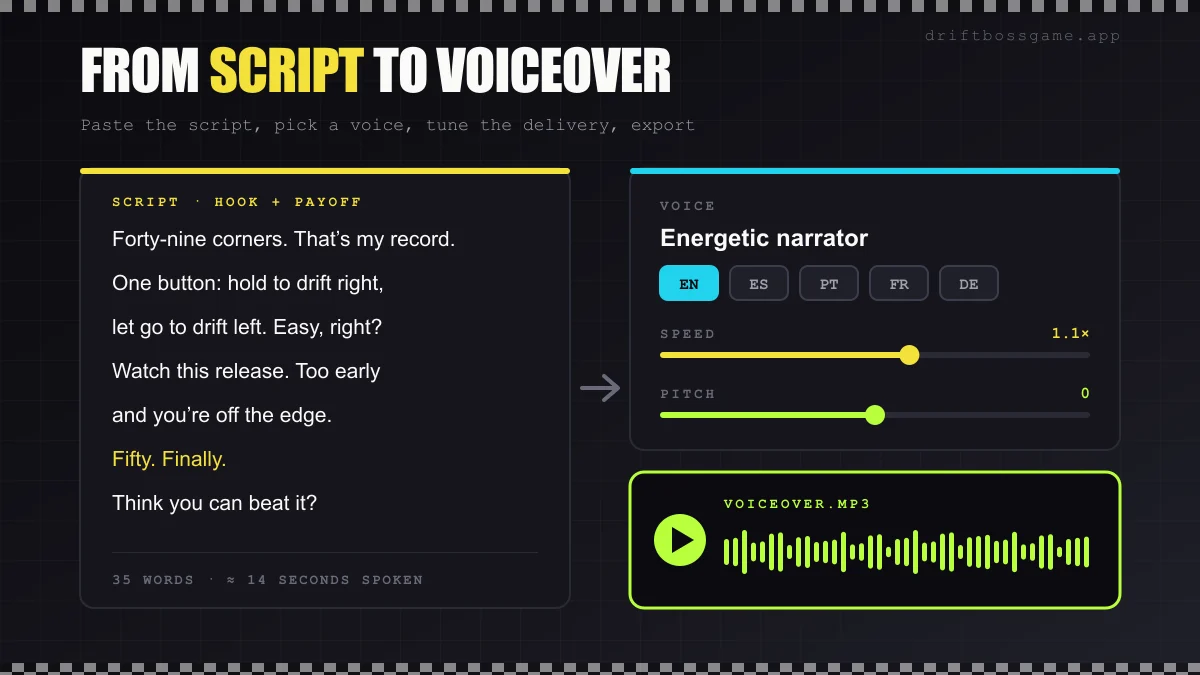
Here’s a 35-word example, about 14 seconds of speech:
- Hook: “Forty-nine corners. That’s my record.”
- Setup: “One button: hold to drift right, let go to drift left. Easy, right?”
- During the run: “Watch this release. Too early and you’re off the edge.”
- Payoff: “Fifty. Finally. Think you can beat it?”
Write for the ear, not the page: short sentences, concrete numbers, one idea per line. Read it out loud once before you record anything, and cut whatever makes you stumble.
Step 4: Turn the Script into a Voiceover with AI
You don’t need a microphone or a quiet room to narrate your clips. AI text-to-speech gives you a clean, consistent voice on every video, and when a line doesn’t land you can fix it in seconds instead of re-recording.
AnySpeech’s AI text to speech turns a written script into natural-sounding narration, with 100+ voices across 50+ languages. You can adjust speed, pitch and emphasis, then download the result as an MP3. If you’d rather sound like yourself, its voice cloning feature builds a custom voice from a short sample of your own audio.
- Paste your script. Keep the line breaks from Step 3; they make it easy to regenerate a single line.
- Audition a few voices. Energetic voices suit challenge clips; a calmer, drier delivery suits tutorials.
- Tune the speed. Slightly faster than default often fits short-form. Slow it down for tutorials.
- Use punctuation for pacing. Commas and full stops are where the voice breathes. Add them where you want a beat of silence before a big moment.
- Export and drop it into your editor.
The same script also works in other languages. Generate a Spanish or Portuguese version and you can post localized cuts of the same clip with almost no extra work.
Two things to check before you publish. AnySpeech lists a commercial license on its paid plans, so if your channel is monetized, make sure your plan covers it. And if you use voice cloning, only clone your own voice or one you have permission to use, and follow each platform’s rules for labeling AI-generated content.
Step 5: Edit: Captions, Sound and Pacing
Any editor works: CapCut, DaVinci Resolve (free), or the editors built into TikTok and YouTube. Stack your tracks in this order, top to bottom:
- Gameplay (cropped to vertical if it came from desktop)
- Voiceover
- Game sound, turned down whenever the voice is speaking
- Music, quietest of all, if you use any
If you want a backing track, our guide to the best music for Drift Boss covers which tempos and genres fit, and how to make an original track that won’t trigger copyright claims.
A few editing habits make a big difference:
- Add captions. Plenty of people scroll with the sound off. Use auto-captions, then fix the mistakes; speech-to-text rarely gets “Drift Boss” right the first time.
- Keep the score visible. Put captions in the middle third of the frame, clear of the score and of the app buttons along the bottom and right edge.
- Cut the dead air. Menus, restart screens and the moment before a run starts can almost always go.
Step 6: Post and Repeat
- Lead with the stakes in your caption: “Can you beat 50 corners?” beats “Drift Boss gameplay”.
- Use a few relevant hashtags like #driftboss, #browsergames and #mobilegames rather than a wall of them.
- Tell viewers where to play. Drift Boss runs free in any browser, so a “play it free in your browser” line gives people something to do after they watch.
- Repeat what works. Pick one format, make a few variations and see which one sticks. Every session you record adds to your library of clips.
Final Lap
A good Drift Boss short is simple: a clean recording, a hook in the first two seconds, a script short enough to breathe and a voice that carries it. AI voiceover takes the hardest part (sounding good on mic) off the table, so you can spend your time on what viewers actually watch for, which is the run.
So hit record and play Drift Boss.
Play Drift Boss free in your browser. No download, no signup.