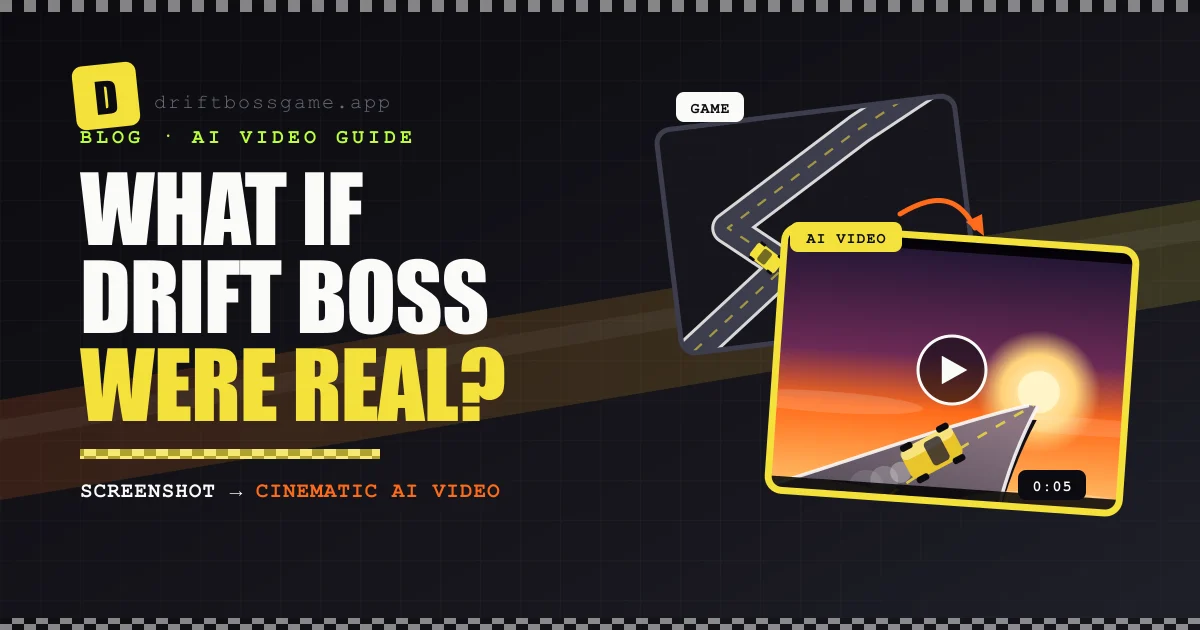
Drift Boss has one of the most recognizable looks in browser gaming: a tiny car, a zigzag road floating in empty space, and corners that never end. It’s simple enough that you can’t help wondering what it would look like for real. Thick tire smoke, a low sun, a road hanging over a sea of clouds.
Not long ago, answering that question took a 3D artist and a lot of render time. Now an AI video generator gets you a few seconds of footage from a screenshot and a sentence, and those seconds make great hooks, intros and thumbnails for your Drift Boss clips. Here’s how to do it, from screenshot to finished clip.
Take a clean, full-screen screenshot mid-drift, then write a prompt that covers five things: subject, action, setting, camera and look. Use image-to-video to animate the game as it is, text-to-video to imagine it from scratch, or start-end frame to morph the game into a realistic scene. Generate several takes, keep clips short, and label the result as AI-generated when you post it.
Three Ways to Generate the Clip
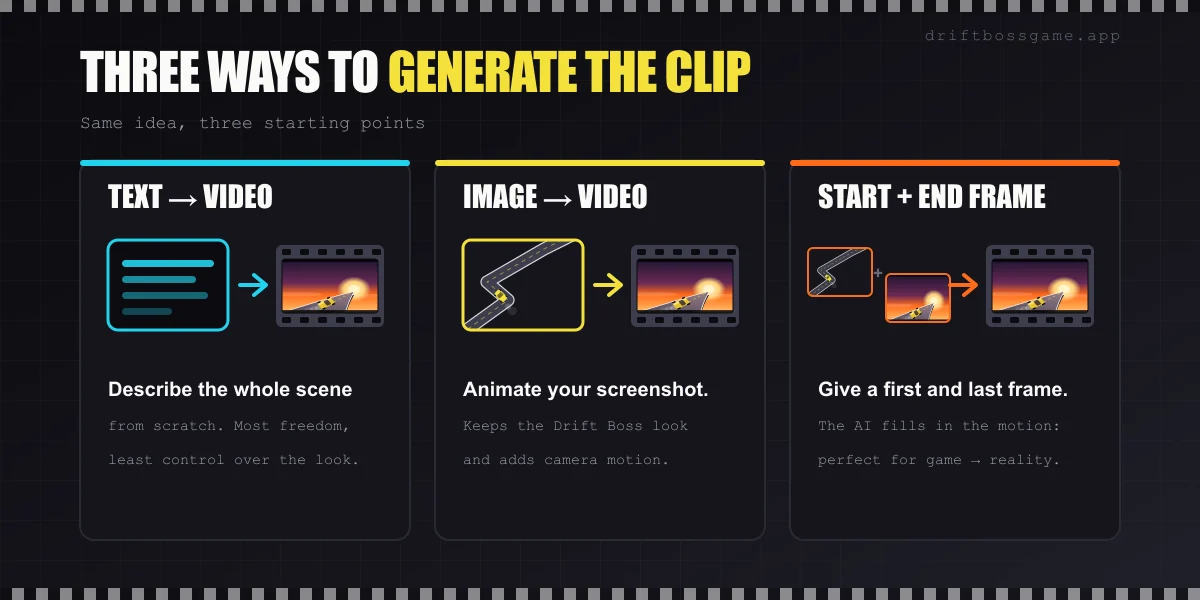
- Text-to-video: you describe everything. Most creative freedom, least control over whether it still looks like Drift Boss.
- Image-to-video: upload your screenshot and the AI animates it. Best when you want the original game look with added camera motion and smoke.
- Start-end frame: you provide the first and last frame, and the AI generates the motion between them. This is the mode for the “game turns into reality” transition.
Step 1: Grab a Clean Screenshot
Image-to-video and start-end frame both start from a still image, and the quality of that still decides the quality of the clip.
- Play full screen on desktop for the sharpest, largest frame.
- Capture mid-drift, with the car angled into a corner. A car driving straight gives the AI much less to work with.
- Use the built-in shortcut: Win + Shift + S on Windows, Cmd + Shift + 4 on Mac, Side + Volume Up on iPhone, and Power + Volume Down on most Android phones.
- Crop out the interface, like the score and buttons, unless you want them in the shot. On-screen text tends to warp once it’s animated.
Step 2: Write a Prompt That Directs the Camera
A good video prompt reads like a shot description from a film script.
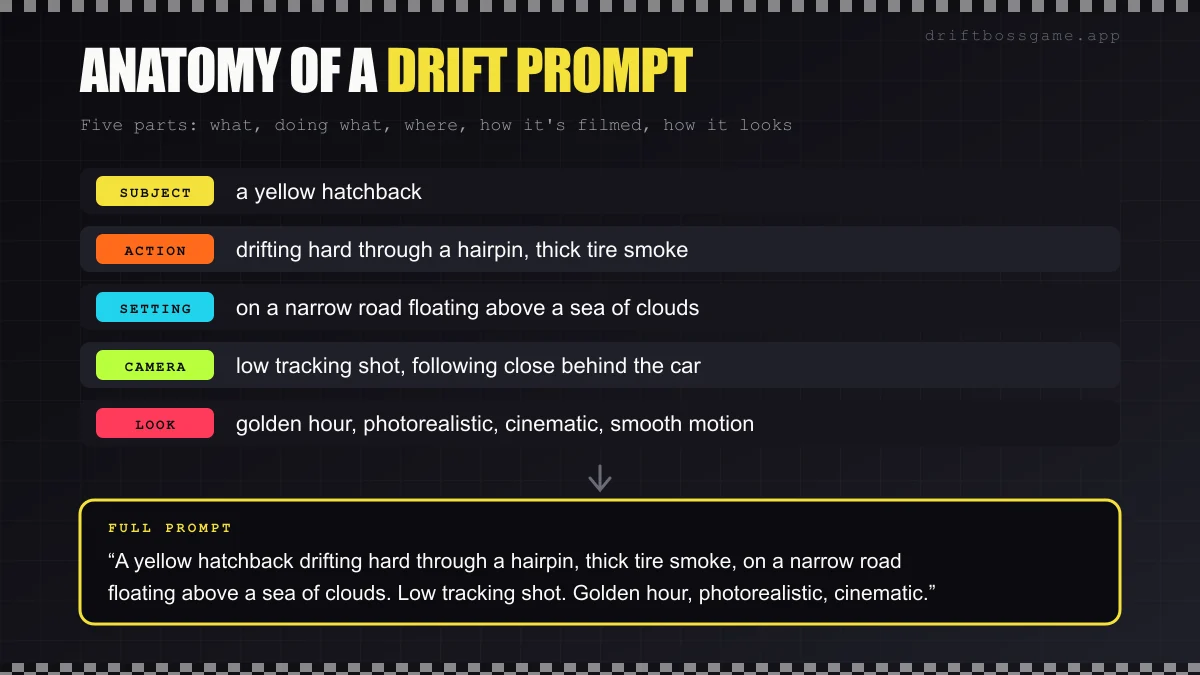
- Subject: what’s on screen. “A yellow hatchback.”
- Action: what it’s doing. “Drifting hard through a hairpin, thick tire smoke.”
- Setting: where it is. “On a narrow road floating above a sea of clouds.”
- Camera: how it’s filmed. “Low tracking shot, following close behind the car.”
- Look: the style. “Golden hour, photorealistic, cinematic.”
Three prompts to start from:
- Keep the game look (image-to-video): “The yellow car drifts around the corner, tire smoke trailing, the camera slowly pulls back to reveal the road zigzagging into the distance. Smooth, stable motion.”
- The real-life version (text-to-video): “A yellow hatchback drifting through a hairpin on a narrow road floating above a sea of clouds, thick tire smoke, low tracking shot, golden hour, photorealistic, cinematic.”
- Game-to-reality transition (start-end frame): “Smooth transformation from game graphics to a photorealistic scene; the camera pushes in as the car keeps drifting.”
Be literal. Describe what a camera could actually see: “thick white tire smoke” works far better than “an epic drift”.
Step 3: Build the Game-to-Reality Transition
This is the clip people watch twice: the flat Drift Boss frame melting into a sunset drift scene.
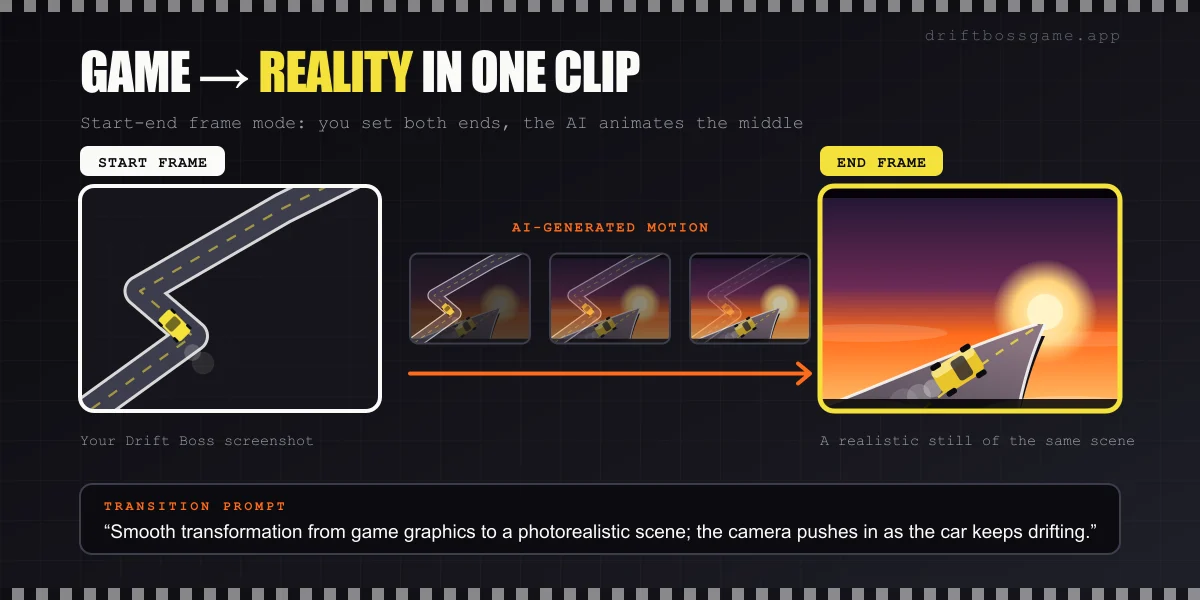
You need two stills:
- The start frame: your Drift Boss screenshot.
- The end frame: a realistic version of the same moment. Generate it with an AI image model, describing the same composition (car position, road direction, camera angle), or grab your favorite frame from a text-to-video take.
Then run start-end frame with a transition prompt. The closer the two frames match in composition, the smoother the morph.
Imgveo’s AI video generator covers all three modes in one place (text-to-video, image-to-video and start-end frame) and lets you choose between video models such as Kling, Seedance and Veo. It also has AI image tools, which is handy for making that realistic end frame. At the time of writing, the free plan includes 20 credits a month for short 480p test clips, and paid plans go up to 1080p and 10-second clips, with start-end frame clips capped at 5 seconds.
Step 4: Generate, Then Iterate
AI video rarely nails it on the first try. Here’s how to fix the usual problems:
- The car warps or changes shape. Simplify the motion and keep the clip short: one drift, one camera move.
- The road stops floating. Say it explicitly: “road suspended in mid-air above the clouds”.
- The camera is jittery. Add “smooth, stable camera motion”.
- It doesn’t look like Drift Boss anymore. Switch to image-to-video so your screenshot anchors the look.
Change one thing at a time between generations so you know what actually helped. It’s also worth running the same prompt through a different model; results can vary a lot.
Step 5: Put the Clips to Work
- Hooks. Open a short with two seconds of the real-life version, then hard-cut to actual gameplay: “Drift Boss in my head vs. Drift Boss in reality.”
- Intros and thumbnails. A single frame from a cinematic clip makes a striking thumbnail.
- Transitions. Use the morph between two runs, or right before a record attempt.
Pick a vertical aspect ratio when the tool offers one, so the clip fits TikTok and Shorts without cropping. Then stack it with the rest of your toolkit: an AI voiceover, an announcer shouting “NEW RECORD!”, and an original soundtrack.
Keep It Honest
- Label it as AI. TikTok and YouTube both ask creators to disclose realistic AI-generated video. Check each platform’s current rules before you post.
- Don’t present it as official. Drift Boss belongs to its developer, MarketJS. Make it clear your cinematic version is fan content, not a trailer or a sequel.
- Don’t pass it off as real footage. A floating road over the clouds is a giveaway, but a realistic street drift might not be.
Final Lap
Turning Drift Boss into a cinematic clip takes three things: a clean screenshot, a prompt that reads like a shot description, and the right mode for the job. Image-to-video keeps the game look, text-to-video imagines it from scratch, and start-end frame gives you the transition everyone rewatches.
Want more source material? Try the same trick on any of our drift games, or grab a fresh screenshot and play Drift Boss.
Play Drift Boss free in your browser. No download, no signup.